
Choose what to keep
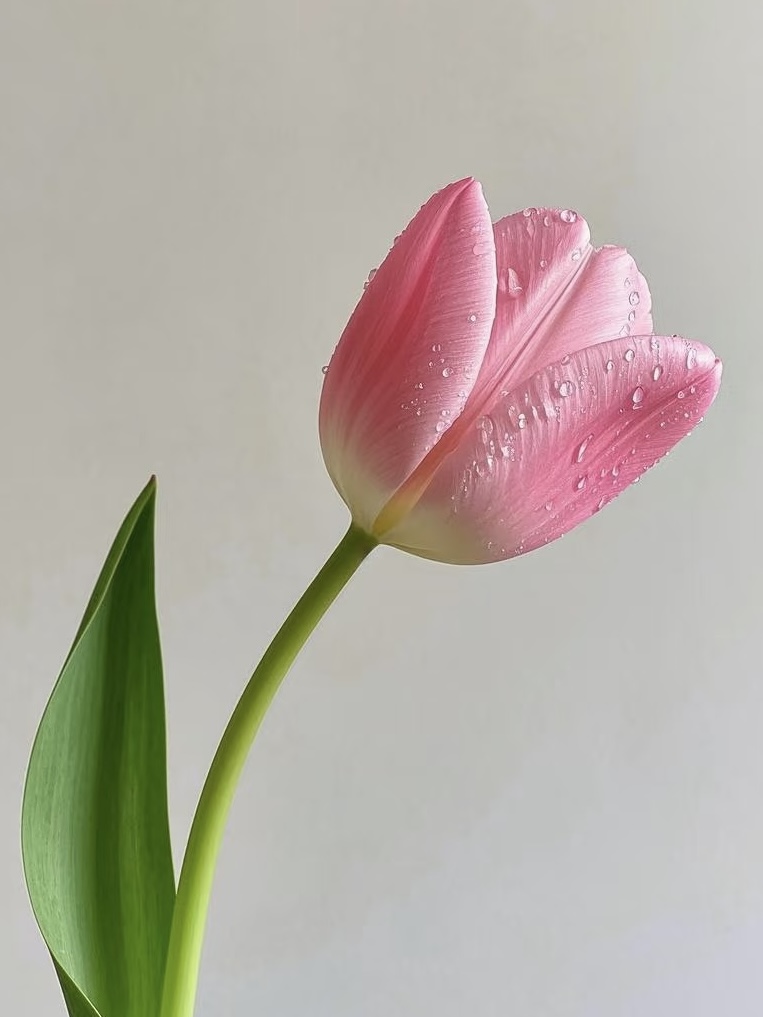
This photo keeps the flower, stem, and leaves. Leave room for those shapes when cropping instead of cutting petals off to fill a square grid.
Photo converter
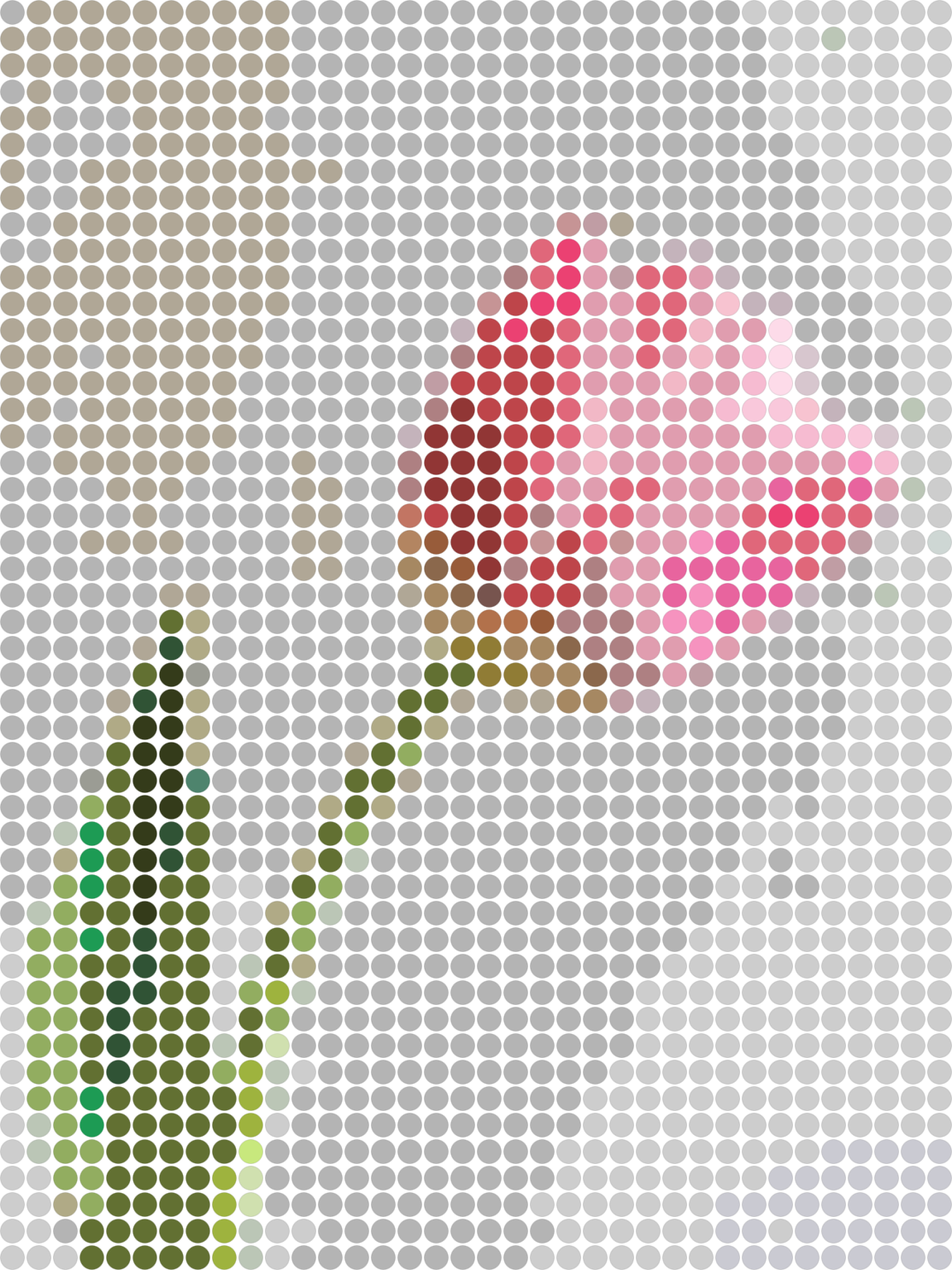
Compare a tulip photo with its bead preview, then try your own image. The examples show how to choose a grid, keep key details, and prepare beads from the printable chart.
Free to use, no signup required. Upload your own photo or try one of the sample images.
Browse the free printable perler bead pattern gallery for beginner ideas, seasonal designs, and finished examples.
Photo to printable pattern
Compare the source photo, bead preview, and printable sheet before choosing which details to keep in your own project. The full sheet includes cell color IDs and a count for each color.
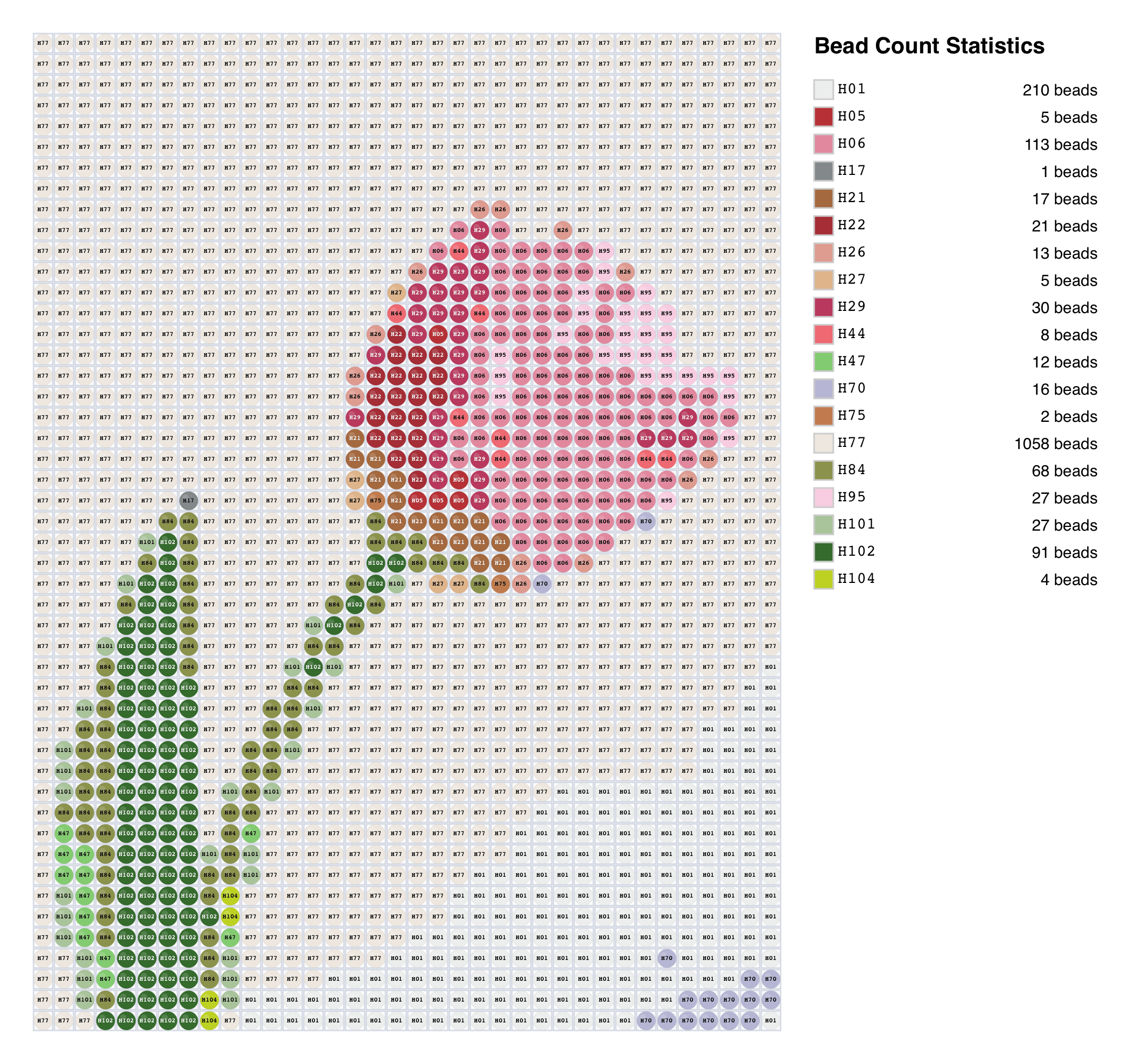
36 × 48 grid, 19 colors, 1,728 beads total, including background beads.
This sheet keeps the pale background, and its material list includes background beads. To build only the flower, remove the background in the editor and export again. Counts in the existing download do not update when you edit your version.
This photo keeps the flower, stem, and leaves. Leave room for those shapes when cropping instead of cutting petals off to fill a square grid.
Pink petals need light and dark areas, while leaves need separation from the background. After reducing colors, zoom in to check that petal edges and thin stems remain distinct.
The download includes color IDs and quantities. Check that your bead brand uses the same color system before sorting. Recheck counts after changing the palette, grid, or background.
Use a close-up so the face fills the grid, then check the eyes, muzzle, and coat markings. This version groups fine fur texture into blocks of color and uses warm browns and cream to keep the orange patches recognizable.
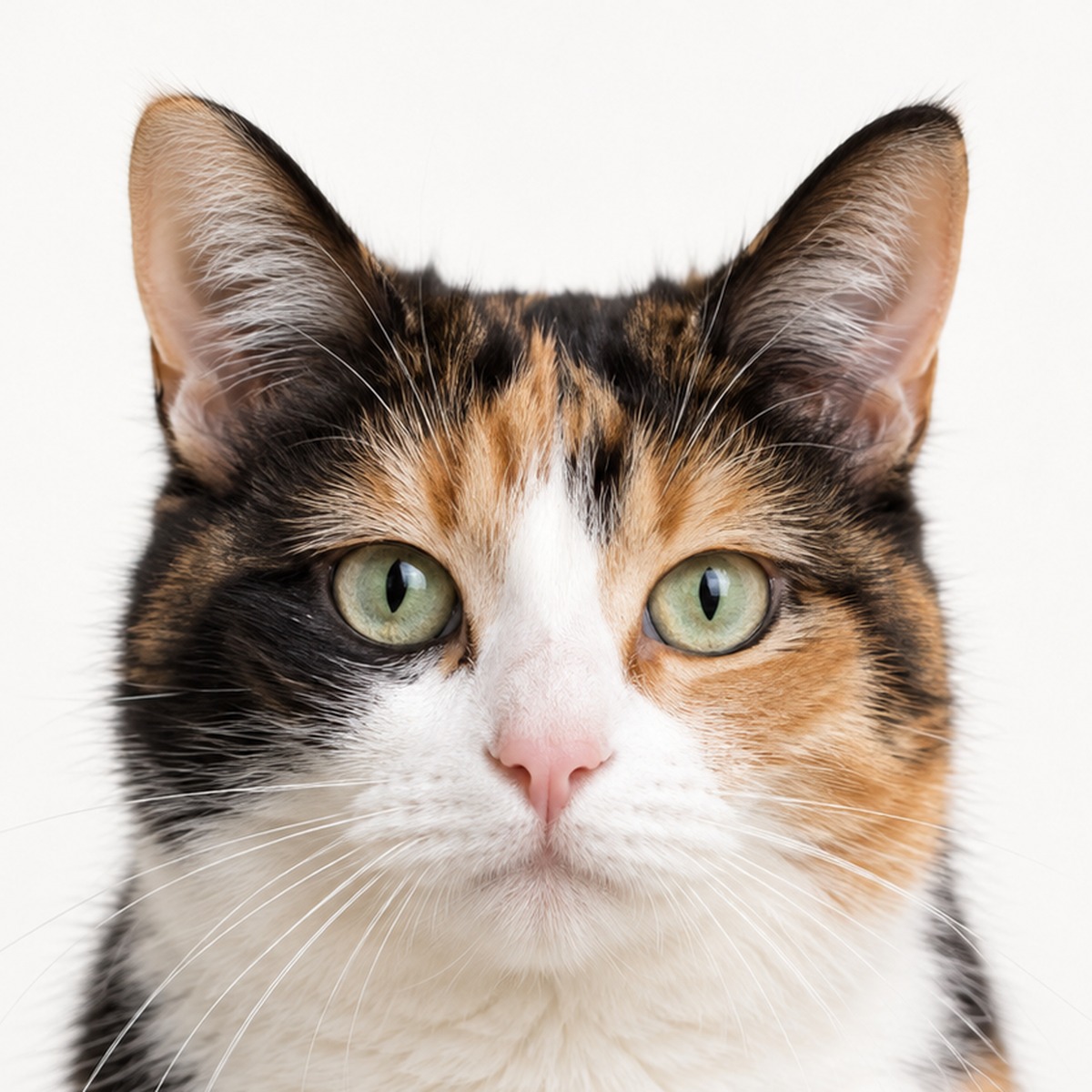
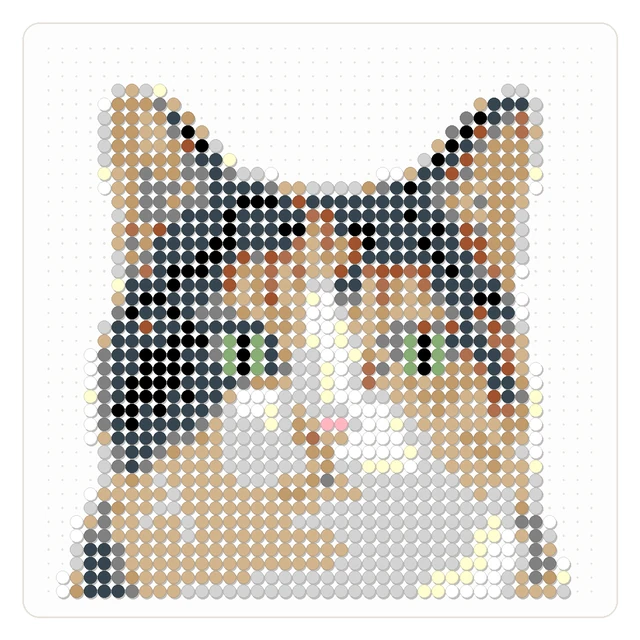
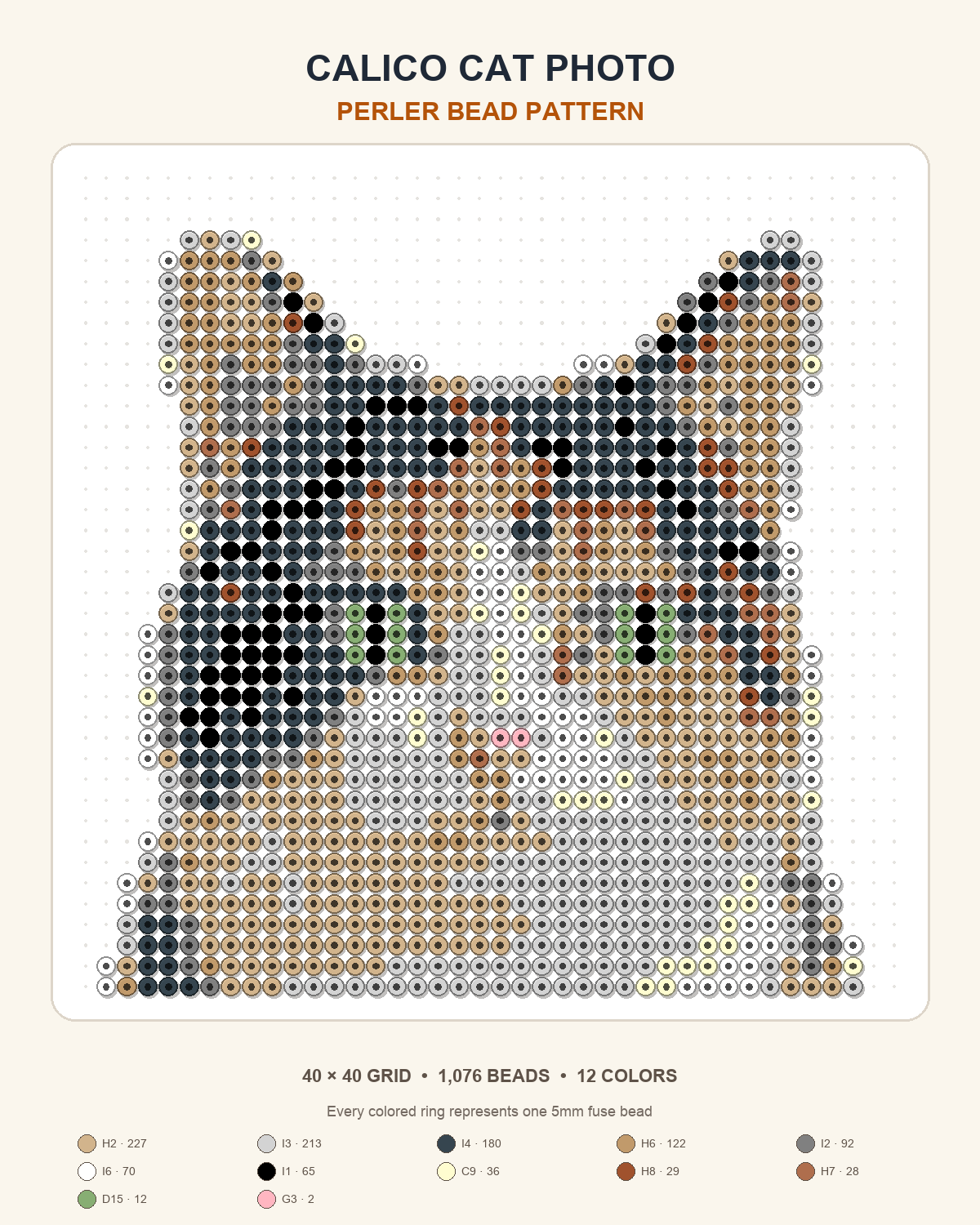
40 x 40 grid, 12 colors, and 1,076 beads. The printable chart includes cell color IDs and per-color counts.
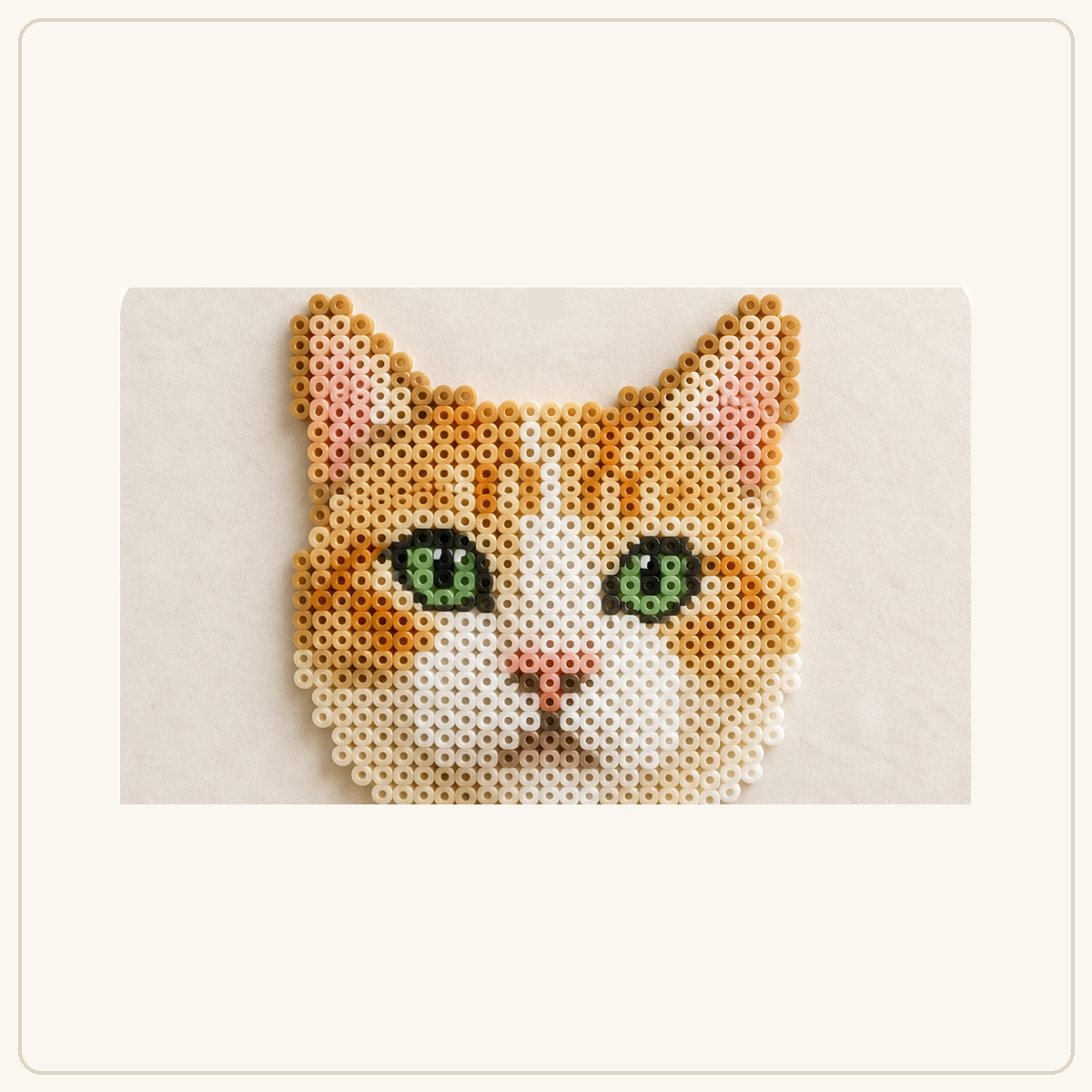
These two existing pet projects show different photos and project sizes. They are not a controlled comparison of settings on the same photo.
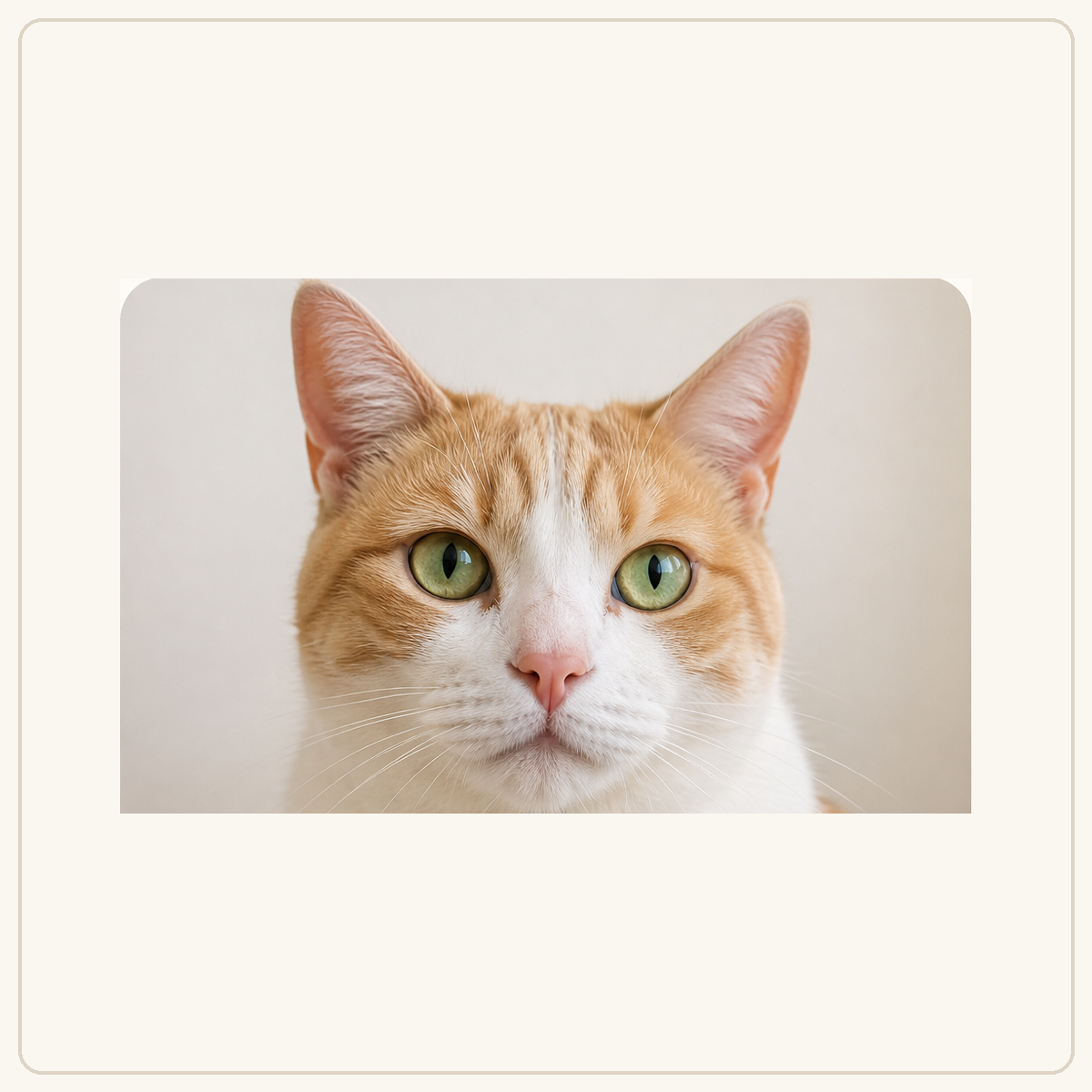
The 30 × 30 example concentrates on the face and eyes. Crop away excess surroundings so the important facial details have room on your grid.
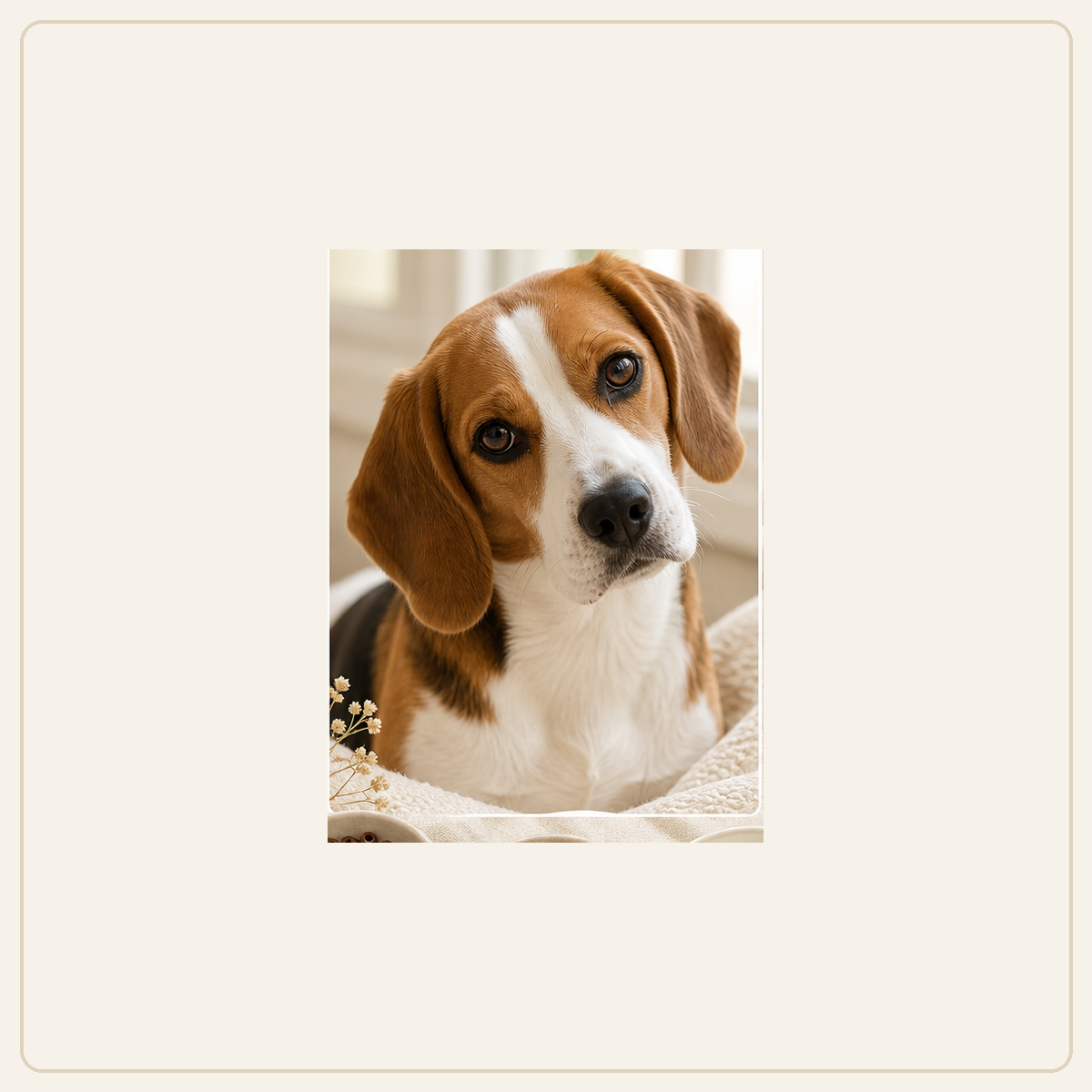
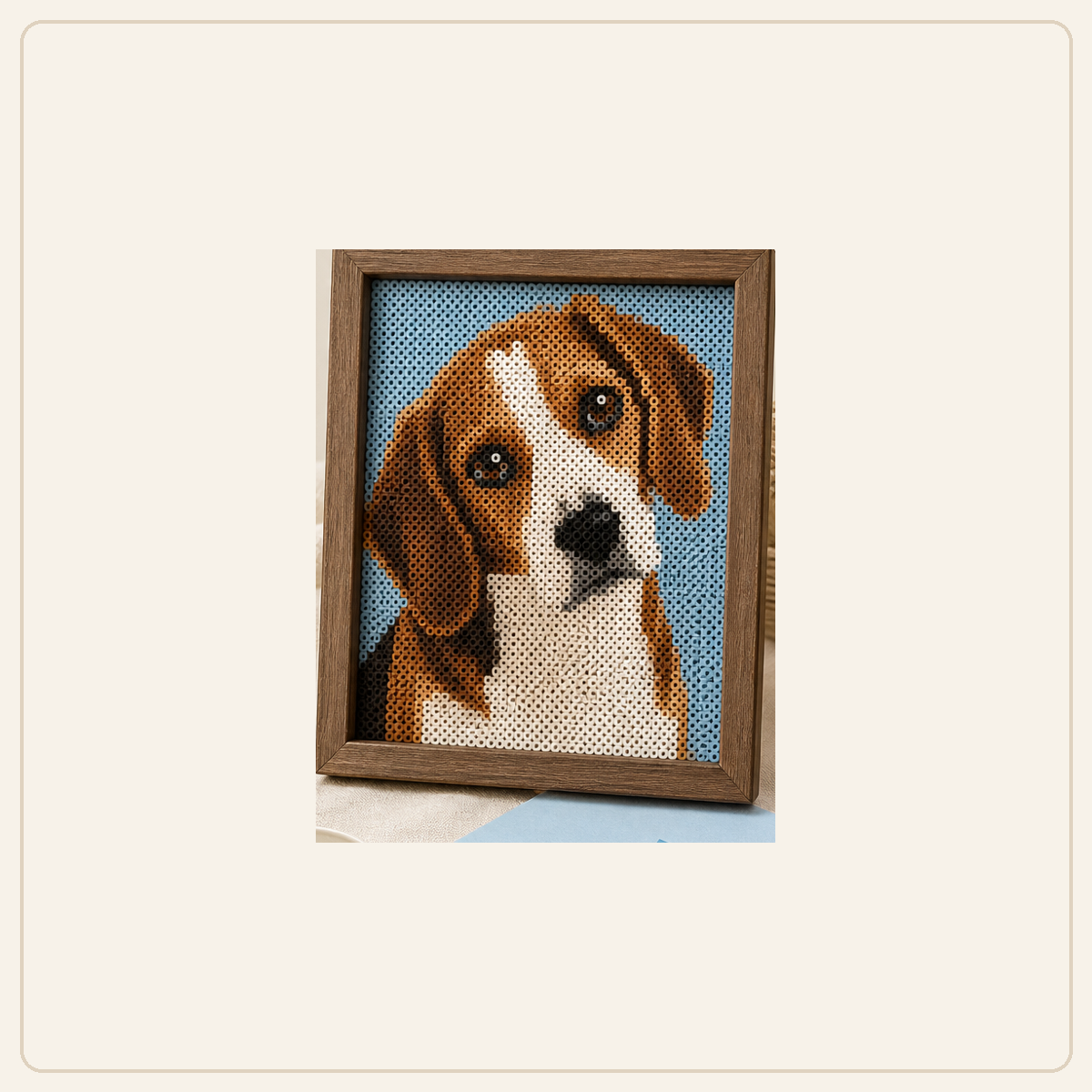
The 64 × 64 example leaves more room for ears and coat markings. A larger grid needs more beads and pegboard space, so measure before committing.
These are starting points to try, not complete presets for the downloadable examples. Keep the same photo and crop, then change one setting at a time.
| Setting | What to try first | What to inspect |
|---|---|---|
| Grid size | Start around 30 cells wide to check the silhouette, then try 40 or 50 if details need more space. | Can you distinguish eyes, stems, and outlines? Will the project fit your pegboard? |
| Color count | Reduce similar shades first, then restore the light and dark colors your subject needs. | Do shadows become scattered dots? Have distinct areas merged into one color? |
| Background | Compare the preview with the background kept and removed before choosing. | Are the subject edges intact? Has cleanup removed pale fur or petals? |
Browse the free printable perler bead pattern gallery for beginner ideas, seasonal designs, and finished examples.
Continue with the homepage tool, pattern gallery, or practical guides.
Upload an image on the homepage, adjust the grid and palette, then download a printable pattern.
Browse finished examples and free Perler bead pattern ideas if you want a starting point before uploading your own photo.
Use the flower-specific page when your source image is a tulip, rose, sunflower, daisy, or bouquet photo.
Another way to make it
The same image can become a different kind of handmade project. PhotoToPattern turns photos into printable cross-stitch charts with DMC colors, symbols, finished-size estimates, and a material list.
No. Both use the same editor and settings. This page adds photo conversion examples and guidance.
Yes. Upload a JPG, PNG, WebP, or iPhone HEIC photo, choose a real bead palette, adjust the grid size, and download a printable pattern preview for free.
Upload the image, choose a bead palette, set the grid width, and let the converter map the image colors to real bead colors. You can then download a printable Perler bead pattern with color labels and bead counts.
Yes. It is built for image-to-pattern conversion, including photos, icons, logos, pet portraits, and simple artwork that you want to recreate with Perler or other fuse beads.
Clear photos with one main subject, strong contrast, and a simple background convert best. Pet portraits, close-up faces, flowers, icons, and bright illustrations usually work better than dark group photos.
For small or mini Perler bead patterns, start with a lower grid width and a simple subject. If the result loses important details, increase the grid size before printing.
Choose Download Pattern (with Color IDs & Count) to get a printable PNG with a numbered grid, cell color codes, and a bead count for each color. Download Preview saves an image of the bead design by itself. To save a PDF, open the complete PNG and choose Save as PDF in your print dialog.
Yes. The tool supports Perler, Hama, Artkal, MARD, and other fuse bead workflows. Many people also call these iron-on beads or iron beads, and the exported pattern can be used with compatible palettes.
Open the free converter, upload your photo, and create a printable Perler bead pattern with bead counts and palette-matched colors.
Free to use, no signup required. Upload your own photo or try one of the sample images.